1
Go to Donor Charm.

2
Enter your registered email address in the Email Address field.

3
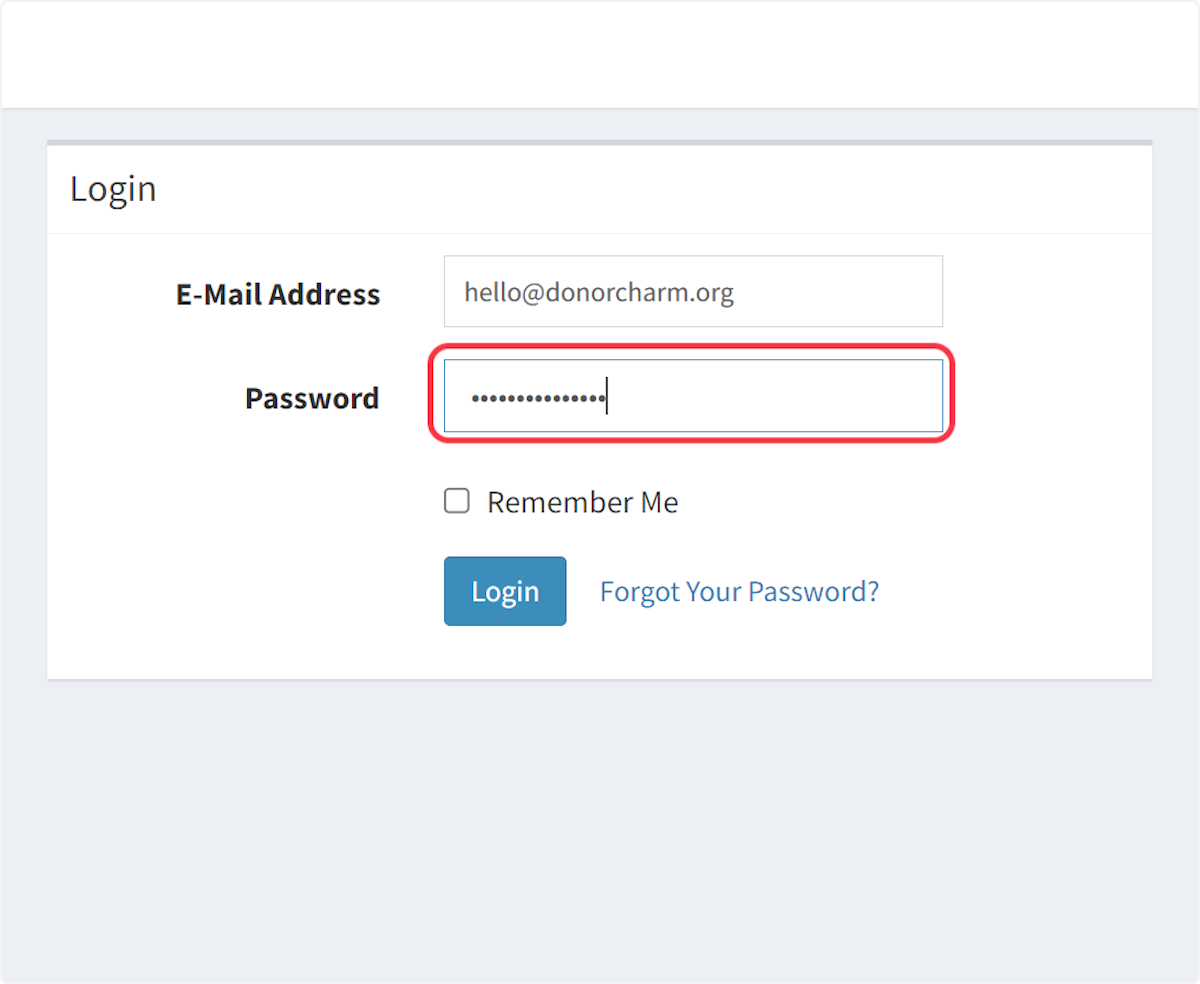
Enter your password in the Password field.
4
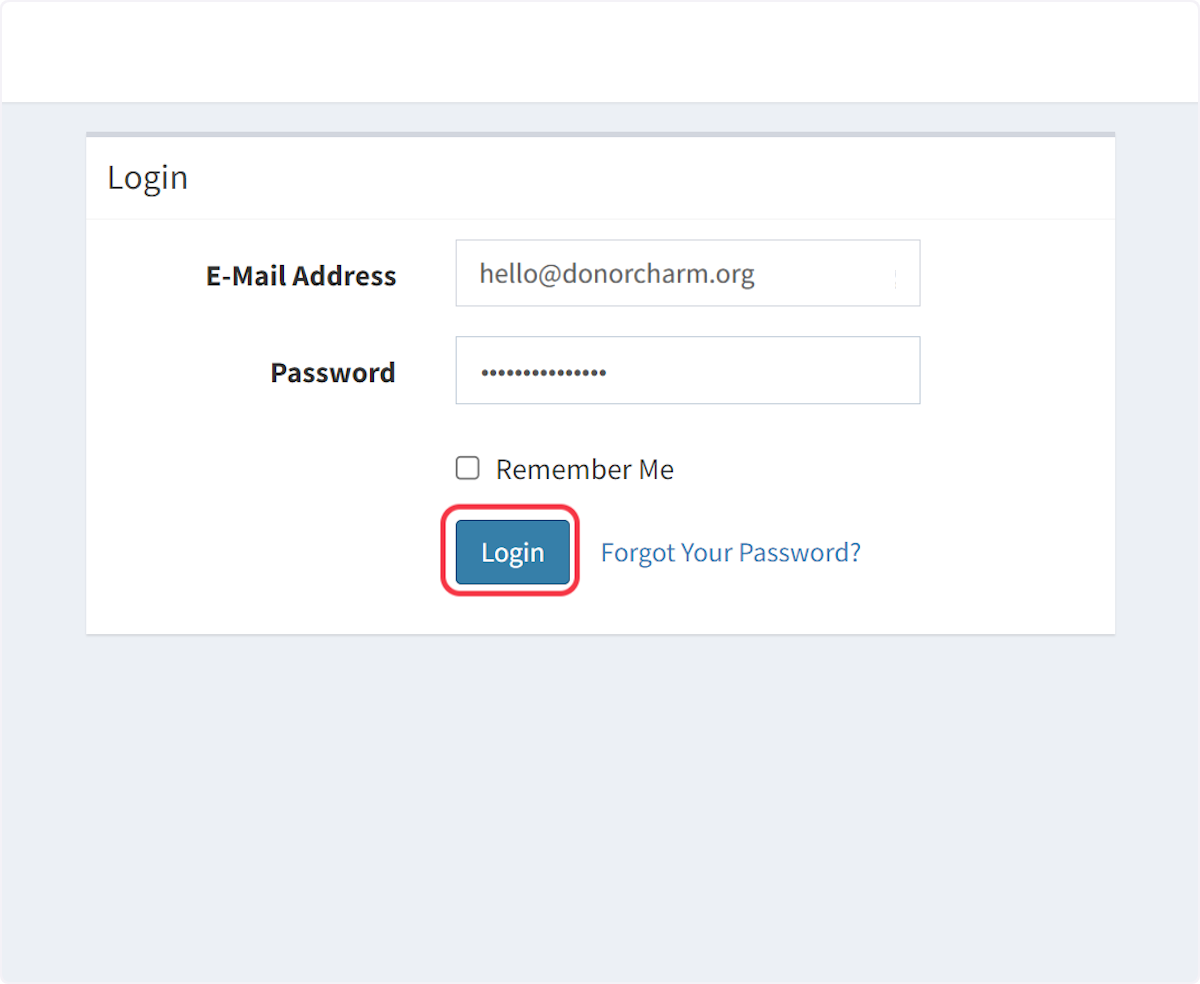
Click Login to access your account.
5
From the Dashboard, click Scheduled Messages.

6
Click Add Scheduled Message.

7
Enter a name for the scheduled message. This name is for your reference and will not be visible to recipients.

8
Click Send On to choose when the message should be sent.

9
Select the desired date from the calendar.

10
Click the hour field.

11
Select the desired hour.

12
Click the minute field.

13
Select the desired minute.

14
Select AM or PM for the scheduled time.

15
Click the calendar icon to close the date and time selector.

16
Enter the message you want to send.

17
Select the Campaign Project for this message.

18
In this example, we selected “Gala 2023.”

19
Click Save and Back once all details are complete.

20
You’ll return to the Scheduled Messages page, where you can view your newly scheduled message.
